
Dejavoo terminal: change the date and time
Dejavoo terminals come in two styles, and the first few steps differ. Pick the one that matches yours, then follow it to the end.
- Version A: you start by pressing the green OK key. The screen is black text on a gray background.
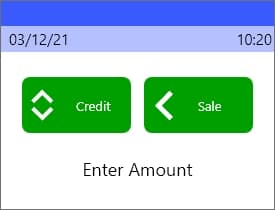
- Version B: you start by pressing F1. The screen is in color, with green Credit and Sale buttons.
Not sure which one you have? Compare your screen to the pictures below. If you still cannot tell, call or text us at 1-855-297-6722 before you press anything.
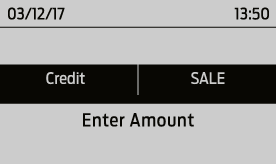
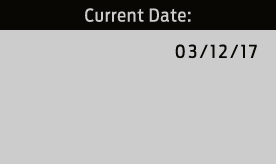
Whichever version you have, the terminal asks for the date and shows you the format on the screen. It is month, day, year. If the Current Date line shows a two-digit year, like 03/12/17, type a two-digit year. Time is always on a 24-hour clock.
Version A: the green OK key
On the home screen (it reads Credit, Sale, Enter Amount), press the green OK key.
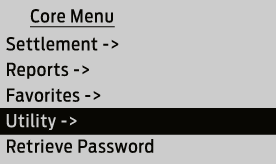
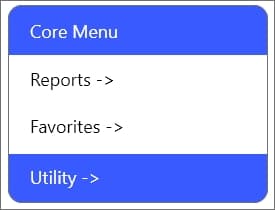
The Core Menu appears. Use the down arrow to highlight Utility, then press OK.
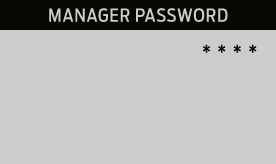
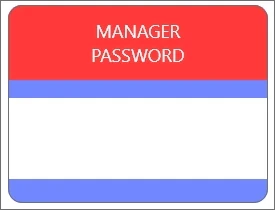
Enter the manager password (1234) and press OK.
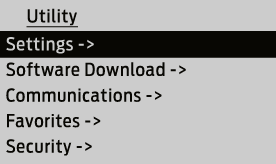
In the Utility menu, highlight Settings and press OK.
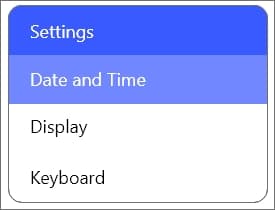
In Settings, highlight Date and Time and press OK.
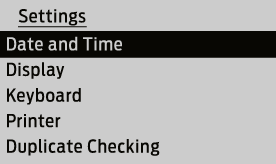
On the Current Date screen, type today's date, month then day then year, in the same format the screen shows. Then press OK.
On the Local Time screen, type the time as HH:MM:SS. For 9:30 AM, that is
09:30:00. Press OK to save.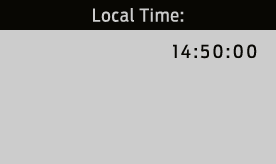
Version B: the F1 key
On the home screen (it reads Credit, Sale, Enter Amount), press the F1 key.
The Core Menu appears. Use the down arrow to highlight Utility, then press OK.
Enter the manager password (1234) and press OK.
In Settings, highlight Date and Time and press OK.
On the Current Date screen, type today's date as MM/DD/YY. November 2, 2026 is
11/02/26. Then press OK.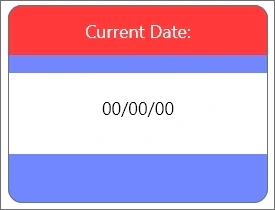
On the Local Time screen, type the time as HH:MM:SS. For 9:30 AM, that is
09:30:00. Press OK to save.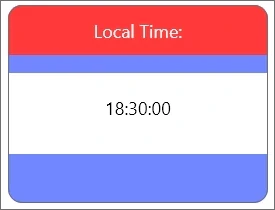
Back on the home screen, the date and time at the top should now match your phone. If they do not, repeat the steps, and call or text us at 1-855-297-6722.
Not a Dejavoo? Head back to all four terminals.