
First Data terminal: change the date and time
This is the shortest of the four. It is four taps and two numbers, and it does not ask for a password. Have the current Eastern time ready, on a 24-hour clock.
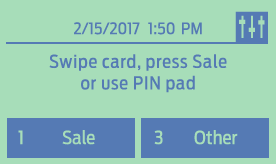
On the home screen, tap the settings icon in the top right corner.
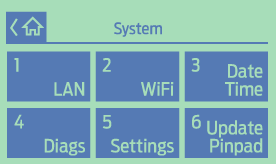
A list of system options appears. Tap Date Time.
Type today's date as MMDDYYYY, with no slashes. November 2, 2026 is
11022026. Then press the green Enter key.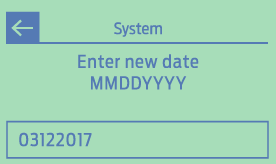
A second box asks for the time. Type it as HHMMSS on a 24-hour clock, so 9:30 AM is
093000and 2:50 PM is145000. Press the green Enter key to save.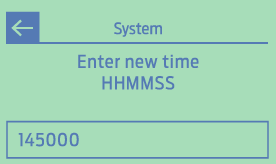
The home screen now shows the new time at the top. If it still shows the old one, run through the steps once more, and call us at 1-855-297-6722 if it does not stick.
Not a First Data terminal? Head back to all four terminals.